Free and open source
vibez
Perform. Arrange. Mix.
vibez is a free and open source DAW built around Perform, Arrange and Mix. Jam out a tune, polish the arrangement and finally focus on the mix.
vibez in use
Watch vibez at work.
This is a live techno session made with Sections, Track Mutes and Capture, followed by the final arrangement and mix.
Sixteen pads, already under your fingers
Press 1234 / QWER / ASDF / ZXCV. Give it five minutes and the layout starts to disappear.
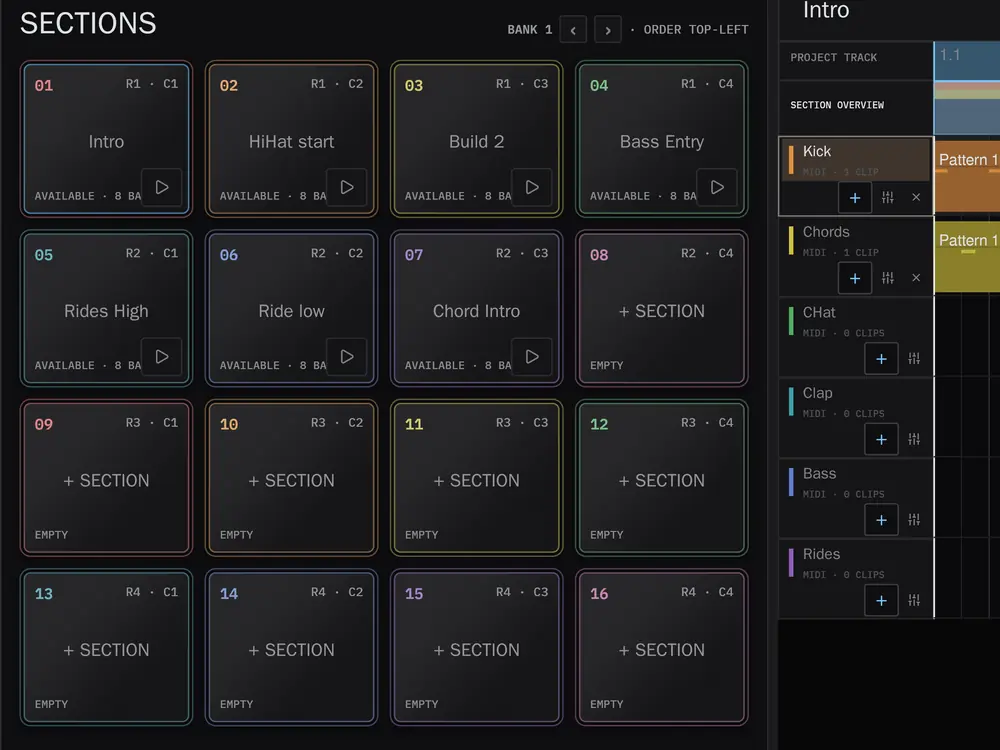
Make music in Sections.
Perform · SectionsA Section holds one musical idea. Put the drums, bass, chords and anything else that belongs together into it. The next Section might be a small variation or a different tune altogether.
- Sections F1Launch complete musical ideas from the grid. Quantized starts keep the changes in time.
- Track Mutes F2Bring parts in and out from the same pads. You can turn one loop into a full arrangement just by performing the mutes.
- Instrument F3The selected instrument is mapped to sixteen pads, with Full Level, 16 Levels and Note Repeat.
- FeelSwing is modelled on the MPC2000XL and can live at project, track or clip level.
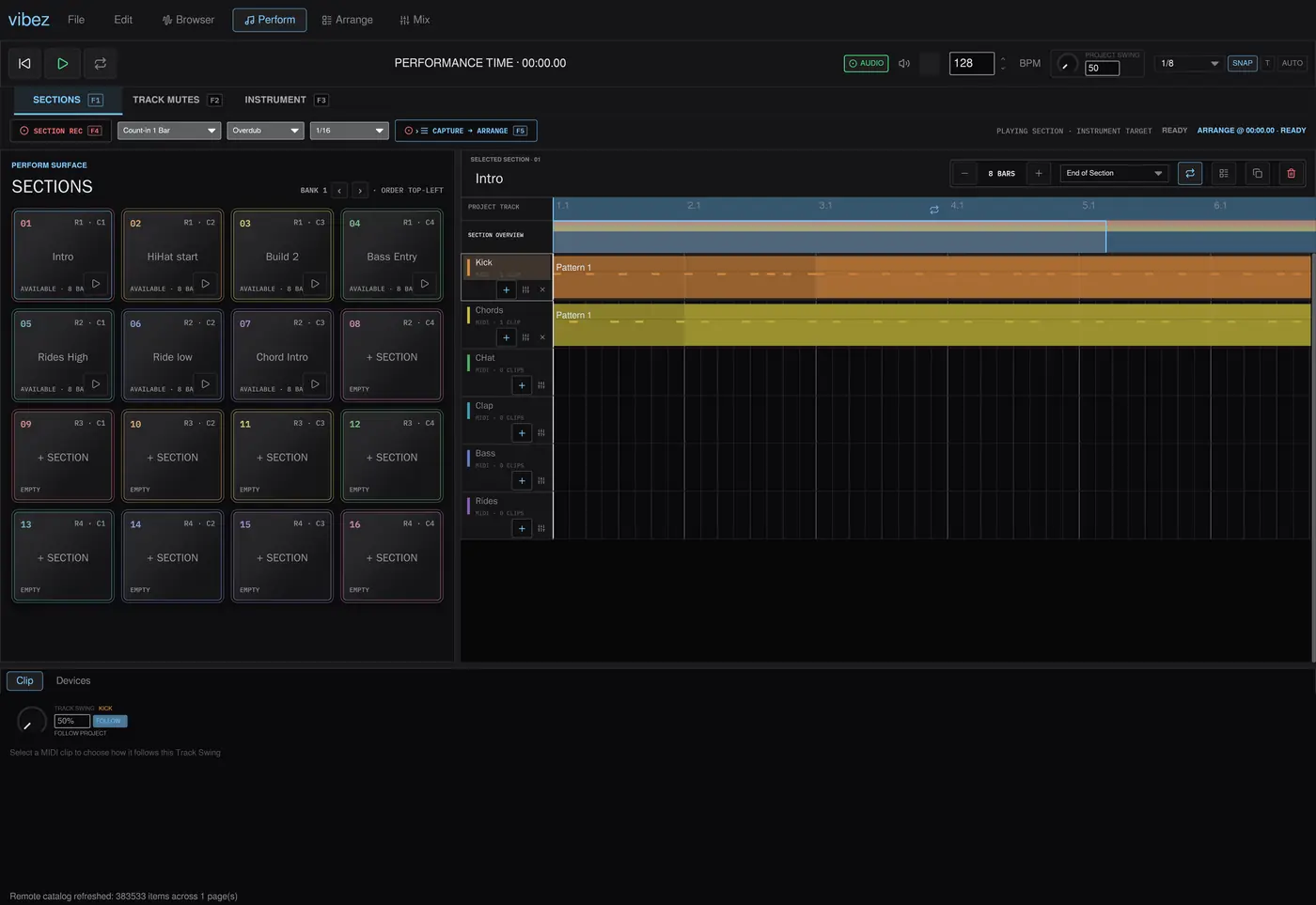
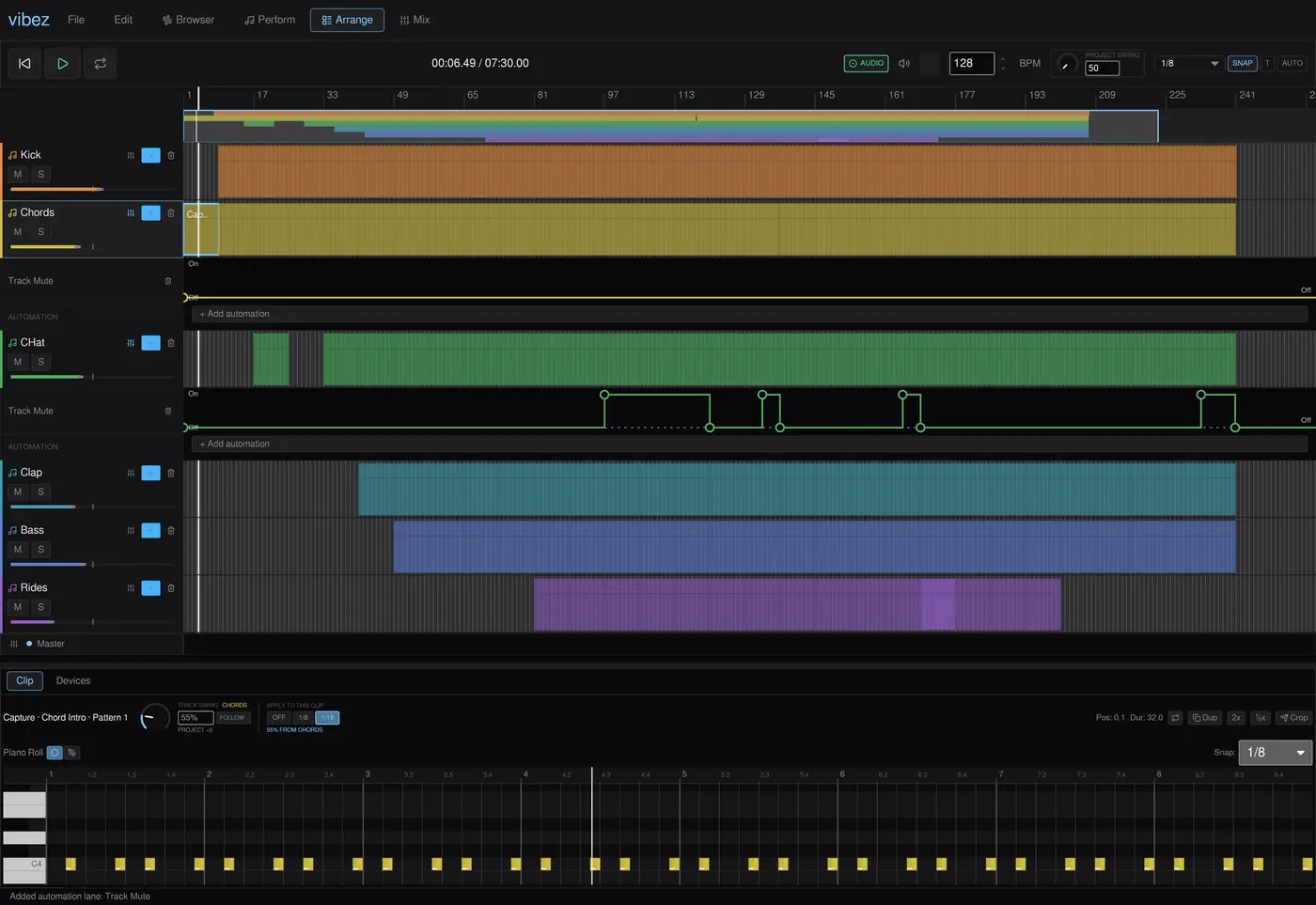
Perform into Arrange.
Capture · ArrangeUse Track Mutes while the music is playing, then press F5 to record what you did into Arrange. You get normal clips and automation, so you can edit the take afterwards or record another one.
Capture the performance F5
Capture records Section launches, live notes, track mutes and automation. It does not change the Sections you performed with. You can also record straight into an audio track from your soundcard or the output of an instrument track. The waveform is drawn while you record.
- Audio inChoose the soundcard, input and channel, arm the track, then record microphones, instruments or the output of a mixer.
- Record a trackRoute an instrument track into an audio track and record its output without leaving the project.
- Warped samplesAudition loops against the playing track. Warp detects their tempo and follows the project BPM.
- AutosaveProjects are saved to a versioned, self-contained file, with autosave working in the background.
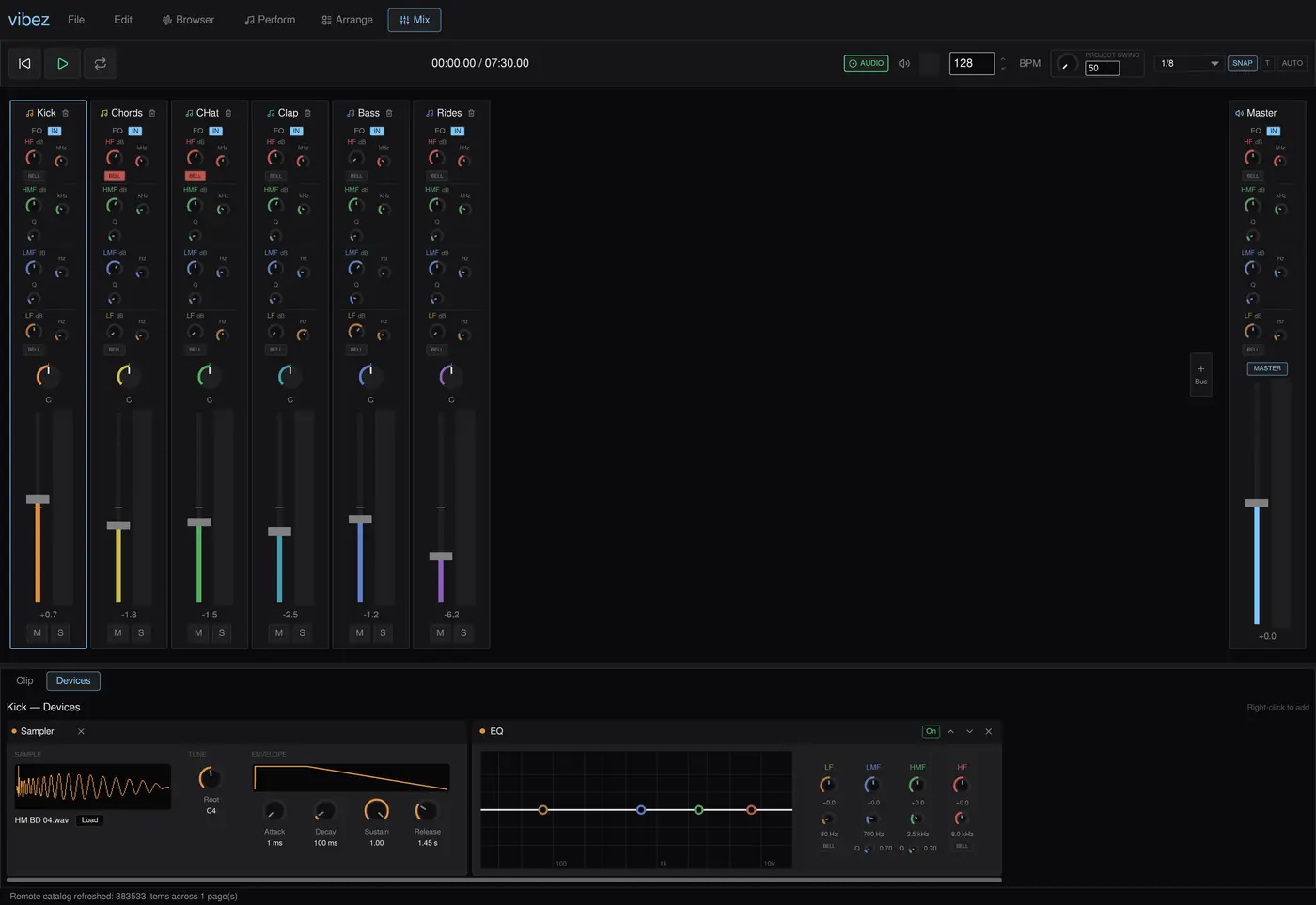
Mix on a full console.
MixThe Mix view is laid out like an analogue desk. Every channel has a four-band EQ, and there are buses, returns and sends. The master behaves like a normal channel too. The device rack follows the selected channel and hosts vibez instruments, VST3 plugins and CLAP plugins.
Play from your keyboard.
No extra hardware requiredYour computer keyboard is laid out like sixteen pads. The three Perform modes use the same grid, so it becomes familiar quickly. After a while you stop looking at the keyboard and listen to what you are playing. MIDI controllers work too, but you do not need one to start.
Open the full keyboard reference
Perform
Transport and view
Arrange and clips
Piano roll and Browser
On a Mac, press Cmd. Everywhere these tables say Ctrl, macOS uses Cmd instead. The app resolves a single command modifier per platform, so a shortcut never wants Cmd for one thing and Ctrl for another.
Why I built vibez.
Alexander WanyoikeI produce electronic music and mainly use Linux. The way I work is quite simple. I jam a tune out, arrange it properly, then mix it down. I wanted a DAW built around that workflow.
A lot of Perform came from using my MPC2000XL. After a while the pads and sequences felt normal, so sequences became Sections in vibez. The Mix view came from working with analogue mixers and liking the layout of an SSL channel strip. I built vibez because I wanted to use it myself. It is open source because I want to share it with people who make music in a similar way.
vibez is in alpha.
Alpha · v0.3.2vibez is free software, released under the GPL and developed in public. It is still alpha software. Project files can change between releases, and some common audio editing tools are not ready yet.
Linux leads development. macOS and Windows build and pass CI on every change, but receive less hands-on testing.
MIDI input. Play notes into the selected instrument track from one port at a time. Full controller mapping is still to come.
Some audio editing. Fades, crossfades, reverse, slicing and transient editing are not in this release.
Download v0.3.2
Released 15 September 2026These builds are not code signed yet. macOS and Windows will warn you the first time you open vibez.
Linux
x86_64
Make the AppImage executable first:
chmod +x vibez-v0.3.2-linux-x86_64.AppImage
./vibez-v0.3.2-linux-x86_64.AppImage
macOS
Apple silicon and Intel
vibez is not notarised with Apple, so macOS will refuse to open it. After dragging it
to Applications, clear the quarantine flag:
xattr -dr com.apple.quarantine /Applications/vibez.app
You can also allow it under System Settings, then Privacy & Security, after the
first blocked attempt.
Windows
x86_64
The installer is unsigned, so SmartScreen will show a blue warning. Choose
More info, then Run anyway.
Or build it yourself
You need a stable Rust toolchain and, for the time stretcher's C++ build, a C++ compiler and libclang. On Linux, also install the audio and device headers.
sudo apt install libasound2-dev libudev-dev libdbus-1-dev
git clone https://github.com/alexanderwanyoike/vibez
cd vibez && cargo run --release
Then open assets/demo.vibez from the File menu to hear something
immediately.
In memory
This one's for you Mum 🥲
I miss you.
If you'd like to help my family give Mum a good send-off, you can donate to her GoFundMe.